Add Server: Add a server or import a subscription
After opening Shadowrocket, stay on Home and leave the connection switch at the top off for now. Check the SERVER area below for existing entries. If an entry is already there, first confirm which information it came from. If the list is empty, choose either manual entry or subscription import based on the details you have. Use whichever method suits your needs; there is no need to add the same information twice.
Enter a single server manually
Tap Add Server on Home to open the add-server page. Open Type first and choose the protocol type that matches your existing server details. Type determines which fields appear, so do not fill in every field before changing the type, and do not guess the protocol from the server name.
Next, enter Host and Port. Enter the server address in Host and the port in Port. Do not paste an entire subscription link, including its protocol prefix, path, and query parameters, into Host. If the selected Type shows fields such as Password or Method, fill them in according to the original details, paying attention to capitalization and spaces at either end. Authentication fields vary by protocol; the fields shown in the screenshot are not a universal checklist for every Type.
After checking the details, use the save action on the page and return to Home. Confirm the new entry appears under SERVER, then tap it to select it. If you cannot find the entry after saving, first check whether the save action was completed rather than immediately entering everything again.
Use an existing subscription link
Open Add Server in the same way, select Subscribe under Type, and paste your complete existing subscription link into the URL field. Check the entire link after pasting, especially for explanatory text, line breaks, quotation marks, or punctuation added by a messaging app. Do not remove authentication parameters from the link.
After saving, wait for the import to finish, then return to Home and check the relevant group and entries. A subscription manages a set of server details; it is not the same as a rule configuration file in Config. Entries in the list only mean that the import produced a result; you still need to choose a mode and verify the connection. To refresh the details later, use the update action for the relevant subscription. Avoid repeatedly adding the same link as multiple groups.
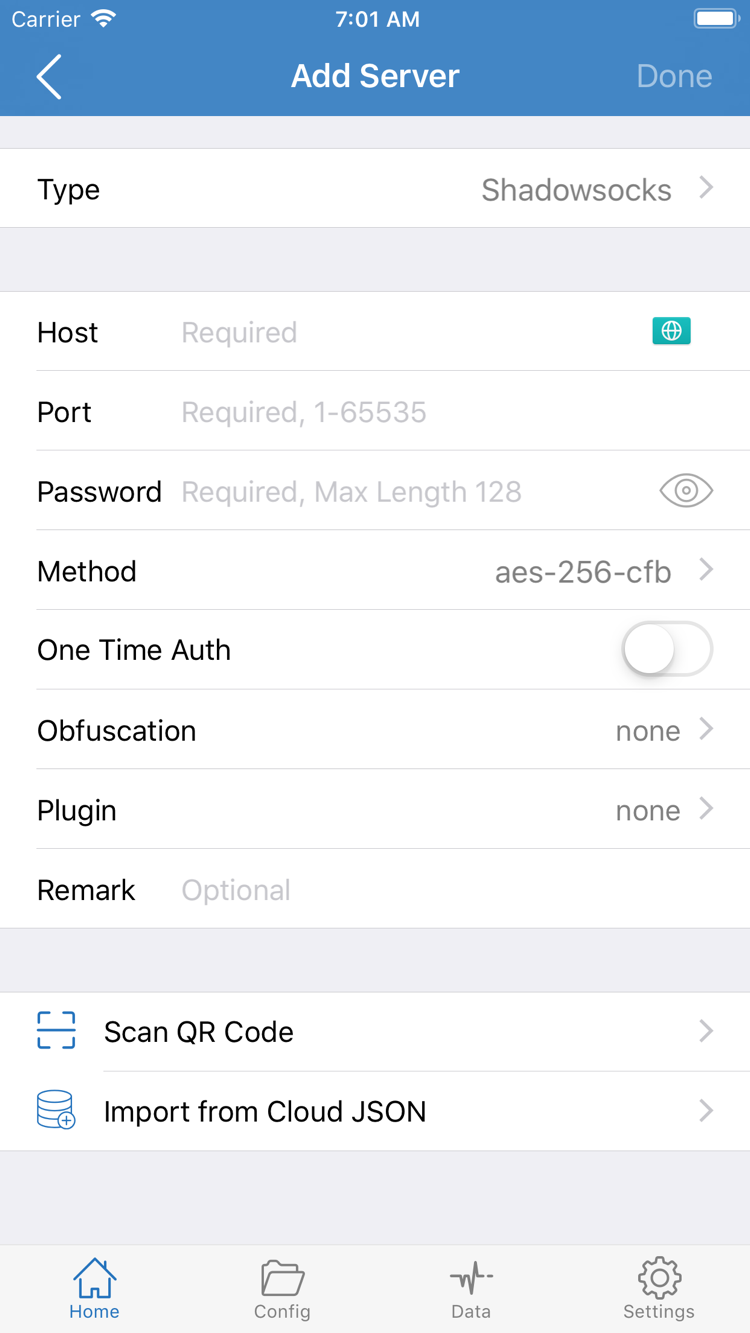
If you already have the relevant QR code, use Scan QR Code and check the recognized details. Import from Cloud JSON is for the corresponding data format; it is not a substitute for an arbitrary subscription link. Whichever import method you use, confirm the data type before choosing an option. Screenshots are not a source of server addresses, account details, or passwords.
Completion check: Home's SERVER list contains an entry that matches your information, and you can select a server. If parsing fails or the list is empty, see Step 05: Import troubleshooting. Changing Global Routing will not fix a link-format issue.
Global Routing: Choose Config, Proxy, or Direct
After adding a server, return to Home and tap Global Routing. This setting determines how the client handles intercepted traffic; it does not fix server parameters or create a rule file for you. The three modes are Config, Proxy, and Direct. Understand the current selection before testing the connection so you can interpret the results.
Use rules for everyday routing: Config
Config handles requests according to the rules in the current configuration file. Open Config in the bottom navigation, confirm which configuration is in use, and open it to review its contents. The configuration editor may show sections such as General, Rule, Hosts, URL Rewrite, and HTTPS Decryption. Each section has its own purpose; you do not need to edit them all for your first connection.
Start by checking Rule: rules are usually matched in order, and the action for a matched rule may be PROXY, DIRECT, or REJECT. For example, the line below applies PROXY to the specified domain suffix. It is a syntax example only, not a complete working configuration, and it does not provide any server details.
DOMAIN-SUFFIX,example.com,PROXYIf you already have a complete rule configuration, first make sure that file is selected, then set Global Routing to Config on Home. Importing a subscription alone does not replace the rule file. Do not repeatedly add the same rule just because you see Add Rule in the editor; check whether an existing rule already covers the request.
Temporary comparison: Proxy and Direct
Proxy provides a global proxy mode for comparison. It can help determine whether an issue is related to rule selection, but it still depends on a working server and valid parameters. It cannot guarantee access to a particular destination or correct a password, port, or TLS field.
Direct provides a direct-connection mode for comparison. If a destination opens in this mode, that only shows the result of direct access to that destination on the current network; it does not show that the proxy server is working. After the comparison, return to Global Routing and restore Config if that is the mode you intend to use, so you do not leave a temporary test setting in place.
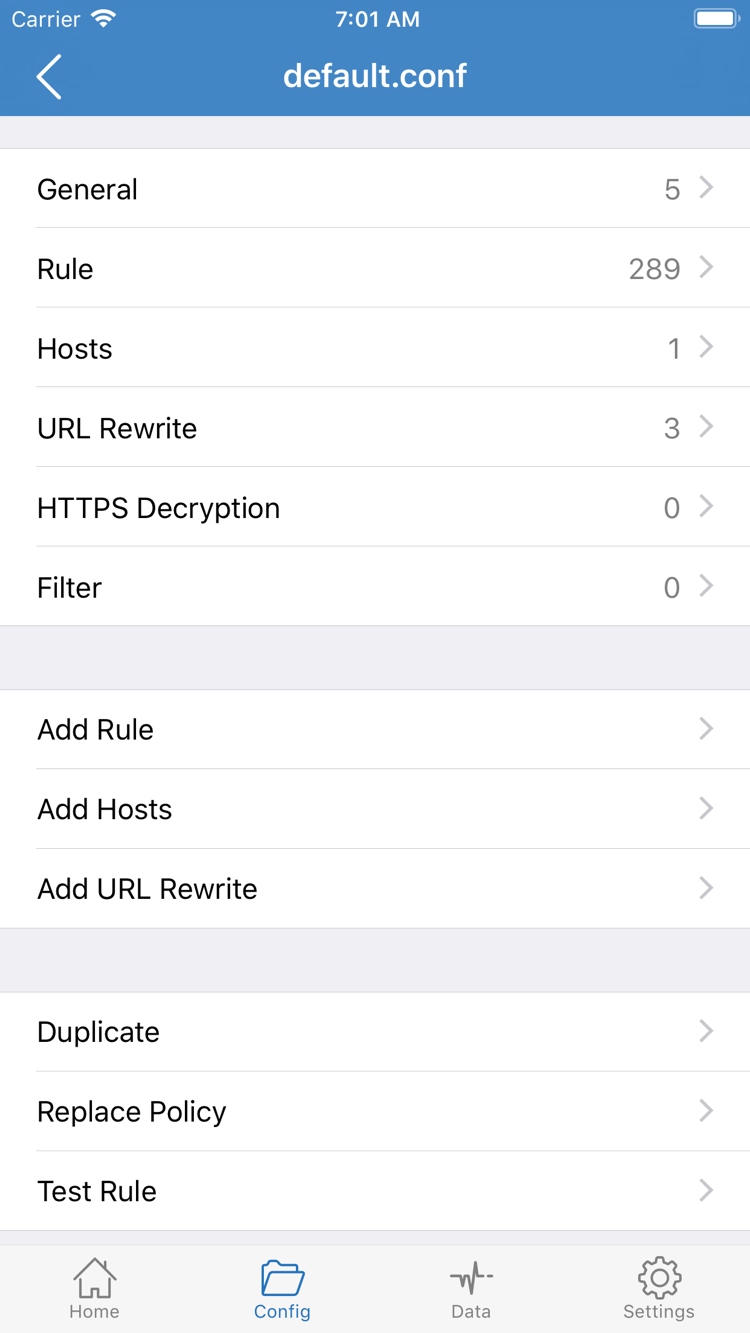
You do not need to enable HTTPS Decryption or install a certificate for the first verification. Keep necessary existing settings and assess server availability separately from rule matching. To learn more about protocol fields and their trade-offs, see Protocol Details. Do not switch to a Type that does not match the server just for testing.
Home: Turn on the connection switch
After choosing a mode, return to Home and check the selected entry under SERVER again. A subscription may contain multiple entries; completing the import and selecting a server are separate actions. Be clear about which entry you are testing so you do not compare results from different entries.
Tap the connection switch at the top of Home. The first time you connect, iPhone / iPad may show a system prompt to add a VPN configuration. Verify that the prompt is from Shadowrocket, then allow it using the system flow. If the system asks you to authenticate the device, complete that step and return to the app. This grants network configuration permission on the device; it does not purchase or activate any network service.
Return to Home and check whether the top status still shows Not Connected. If the switch turns off immediately or system authorization is incomplete, address the permission or connection setup issue first. Do not treat it as a rule-matching failure for a particular site. A device that has already allowed the configuration may not show the same prompt every time.
If another VPN configuration on the device also handles network traffic, confirm which one is currently in use during testing. Organization-managed devices may restrict VPN settings; check with the device administrator about those restrictions rather than repeatedly deleting configurations to try to bypass them.
Once the connection status changes, continue to the next step and verify an actual request. A system VPN status or an app switch that remains on only shows that the relevant configuration is running; it does not by itself prove that remote authentication succeeded, DNS is working, or every rule is behaving as expected.
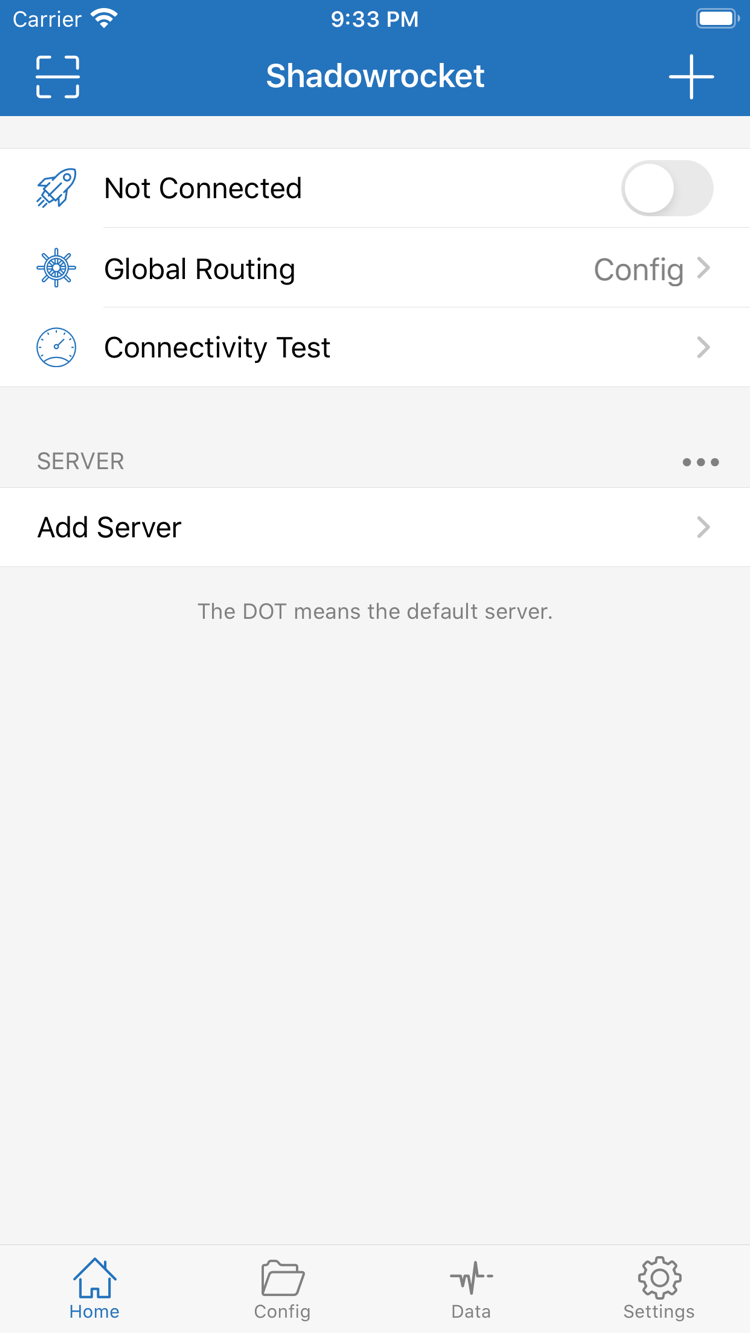
Completion check: System authorization is complete, and Home no longer shows Not Connected. If the status looks normal but pages will not open, keep the same server selected and continue to the next step to gather specific results.
Connectivity Test: Check whether things work as expected
Tap Connectivity Test on Home and wait for the test to finish. Results depend on the test method, destination, and current network, so treat them as clues rather than proof that every app will work. First note whether the test completed or timed out, then check the actual use case.
- Open a page you actually need to access. Make a new request in a browser rather than relying on a cached page. If only one page fails, first check whether that destination is available; do not immediately reset the entire client.
- Check Global Routing during the test. With Config, a request may be handled by DIRECT. A page opening does not necessarily mean that it used PROXY. Record results from comparisons using Proxy and Direct separately.
- Check the request record to see the handling path. Find the domain you just visited in the app's available request records, then check the matched rule and action. A record is generated by a new request; if there is no record, first confirm that the connection is still on and that the request was actually made again.
- Restore your everyday mode and test again. If you temporarily changed modes for troubleshooting, restore Config and test the same destination again to see whether the issue changes with the mode.
For example, if a local destination is handled by DIRECT in Config, that can be a normal result of the rules working as intended. For a request matched by REJECT, check whether the rule matches your intended use rather than immediately concluding that the server is unreachable. If the destination is accessible with Proxy but not Config, check the selected configuration and rule order first.
Keep the same server, destination, and network connection during comparisons, and change only one condition at a time. Changing the server, switching Wi-Fi, and modifying DNS all at once may change the result, but it will be difficult to identify the cause. After verification, you can turn the connection off and on again to confirm that the saved settings are in use rather than unapplied edits.
Initial setup is complete when the connection status, actual access, and rule records are consistent. Consider automatic connection and more detailed rule changes later; there is no need to turn on every option just to make the setup feel complete.
Settings: Common failures and what to check
When troubleshooting, first describe what is happening: a subscription will not save, SERVER is empty, a test times out, the switch turns off by itself, or only some requests fail after connecting. Different symptoms point to different checks. Follow the operation sequence below; there is no need to delete everything and start over.
Subscription import fails or the list is empty
Return to the subscription entry and check the complete URL. Confirm that it was not pasted into Host and that you are not using an ordinary webpage address as a subscription link. Check that your existing subscription is active and that the current network can reach the address. If an update returns no recognizable content, changing Global Routing will not fix the format returned by the remote server. For more checks, see Subscription parsing fails or the list is empty.
An entry is present, but the test fails
First check which entry is selected, then open its edit page and review Type, Host, Port, and the authentication fields. For types that require TLS or other additional parameters, compare each field with the original details rather than filling in values based on guesswork. Passwords, UUIDs, and keys serve different purposes and are not interchangeable. If the test still fails, keep the configuration unchanged and test over Wi-Fi and cellular separately, noting whether the results vary by network.
Test results do not match actual access
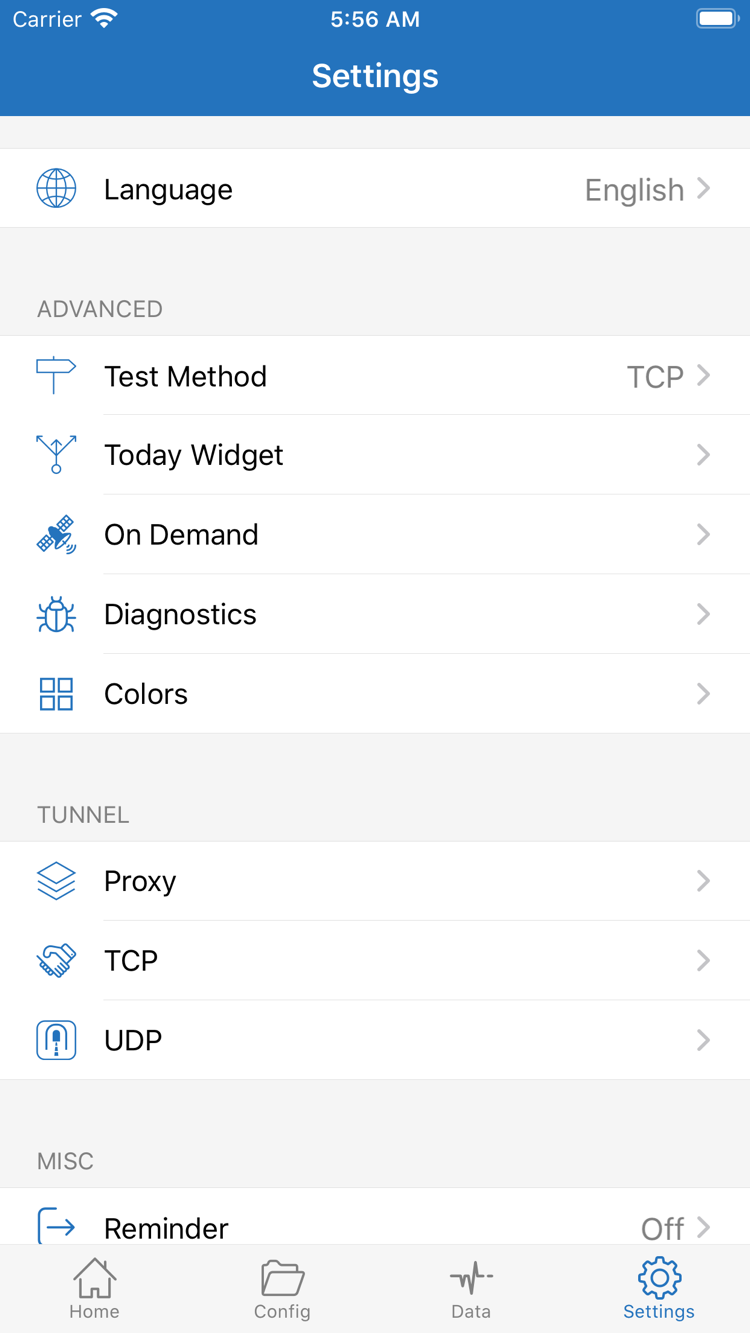
Open Settings and check Test Method. Different methods measure different things, so a failure with one method does not mean that all actual requests fail. Use one method consistently for comparison, then check browser requests and rule records. Do not switch through several servers based only on one test result in the list.
Only some requests fail after connecting
Return to Global Routing and briefly compare using Proxy. If the issue occurs only with Config, first check the selected Config, earlier matching rules in Rule, and the final action. If the symptom is a domain resolution error, check the DNS-related settings in the configuration; do not change every field at once. When checking options related to Proxy, TCP, or UDP, first confirm that the issue involves the corresponding type of traffic.
Automatic reconnection and On Demand
If the connection comes back after you turn it off manually, check On Demand in Settings. It triggers a connection according to set conditions; it does not verify whether the server details are correct. When troubleshooting for the first time, note the current conditions. If they interfere with a manual comparison, you can temporarily disable them for testing and restore them afterward if needed. Set up on-demand connection after manual connection has been verified, so you are not troubleshooting trigger conditions and server issues at the same time.
What to record for further diagnosis
Check the relevant Diagnostics options in Settings and note the network in use when the problem occurred, the Global Routing mode, protocol Type, whether only a specific destination is affected, and the exact error text. Before sharing diagnostic details, redact authentication parameters in subscription links, passwords, keys, and personal network addresses. A complete subscription link may grant access and should not appear in public screenshots.
If the original details have expired or the remote service rejects authentication, contact the provider of your existing service to check its status; reinstalling the client cannot restore remote access. To repeat the setup, return to Add or import. For more about protocol fields and trade-offs, see Protocol Details. Describing exactly where the process failed is more useful than changing every setting at once.